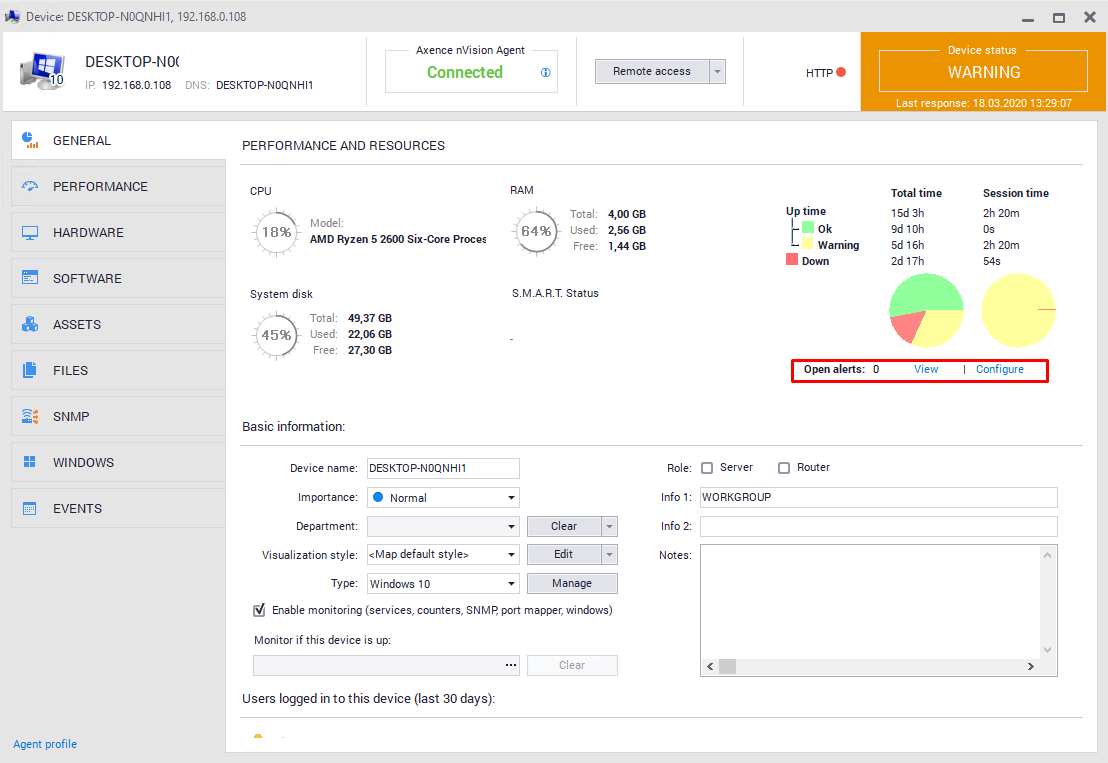
1.Open the alert management window for the object on which you want to create the alert. 2.Click on the  Add alert button to create a new alert, or select an existing alert and click on the  Edit alert button. 3.In the For event field, select the event for which you want to define the alert. If the event you are interested in is not defined yet, create it by clicking on [ New ] on the right. For more information, see Event management. 4.In the Run actions field, add the actions started when the alert occurs. To add an action, click on the icon on the left side of the list of actions. The Action window opens, in which you can set the following action properties:
Property
|
Description
|
Run action
|
Select the action to run. If the action is not defined yet, create it by clicking on [ New ] on the right. For more information, see Action management.
|
"When" group
|
|
When the alert starts
|
The default option: the action is started as soon as the alert is triggered.
|
After
|
Select After and enter the number of minutes the program waits before starting the action. If the alert ends before this time, the action is not started.
|
When the alert ends
|
Sometimes you need to be informed that a problematic situation has ended. Use this option if you want, for example, to be informed when an important device starts responding again.
|
Time restriction
|
Here, you can define the time in which the action can be performed. Often you want to be informed differently during working hours and when you are out of the office. For example, Axence nVision® can send you only an e-mail when you are in the office, but when you are out, you may want to get an SMS message.
|
Repeat action every
|
Sets the action to be performed cyclically until the alert ends. Enter the number of minutes after which the action is repeated.
|
5.Restrict the alert to selected device types and importance levels. This is useful if you want to configure a global alert for the whole Atlas, but do not want it to be generated for less important devices – Administrators usually do not need to know that an ordinary workstation was turned off, but they want to know that a server stopped working. •Select the device type in the Type field. •Select all appropriate checkboxes next to Importance to restrict the alert to devices with the selected importance. 6.Make sure the Alert enabled checkbox is selected. Otherwise, the alert is not active. Important! Changing the settings of inherited alerts can affect other devices, so be careful when you change them.
|