Asset audit


|
Asset audit |
|
|
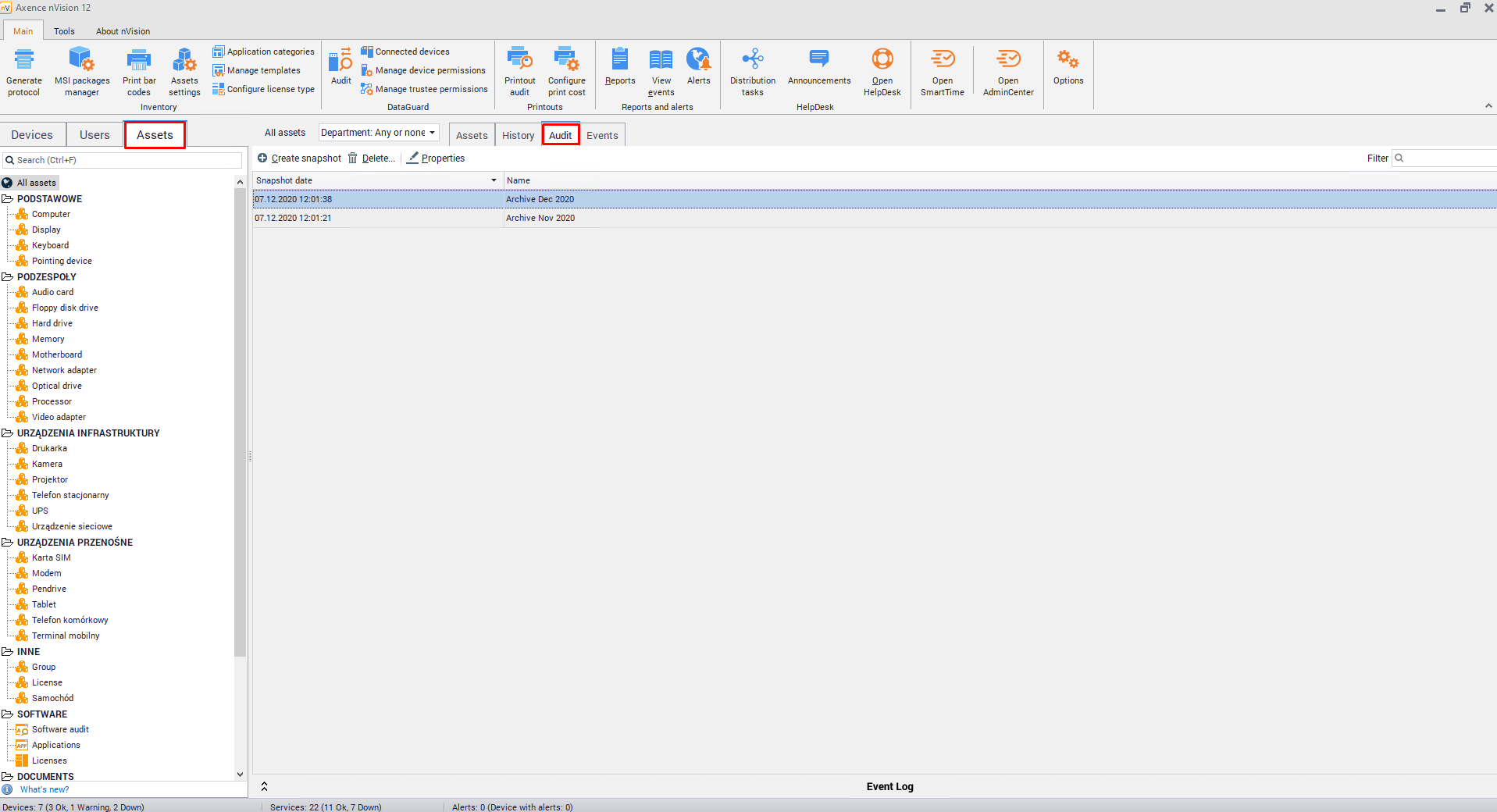
An asset audit compares two snapshots, that is, archived states of assets. You can compare any two snapshots or a snapshot with the current state. To audit assets: 1.In the main Axence nVision® window, select the Assets tab. In the list on the left, select All assets and go to the Audit tab above the asset table.
You can create a snapshot only when there are no events waiting for user acceptance. Otherwise, before you are asked for the snapshot name, a window appears asking you to accept all events. 2.Select the archive (snapshot) you want to compare and open its Individual asset types are compared during the audit only if they were saved in both compared snapshots. 3.Double-click on the snapshot. In the Compare audit archive window, select the archives to compare and the Show (state) and Audit status options (described below). State and audit status The Show (state) and Audit status options let you limit the number of records shown and quickly get to the most important information. The relations between states and statuses are shown in the table:
The Audited / Not audited status depends on whether the mobile application was used between the two snapshots compared in the audit. Important! If you use the mobile application, scan all devices (barcodes). Devices that are not scanned are treated as not audited and should be considered missing. "Using the mobile application" means finding a fixed asset by scanning its barcode or with other parameters (for example, part of the name) and saving it. |