Status settings


|
Status settings |
|
|
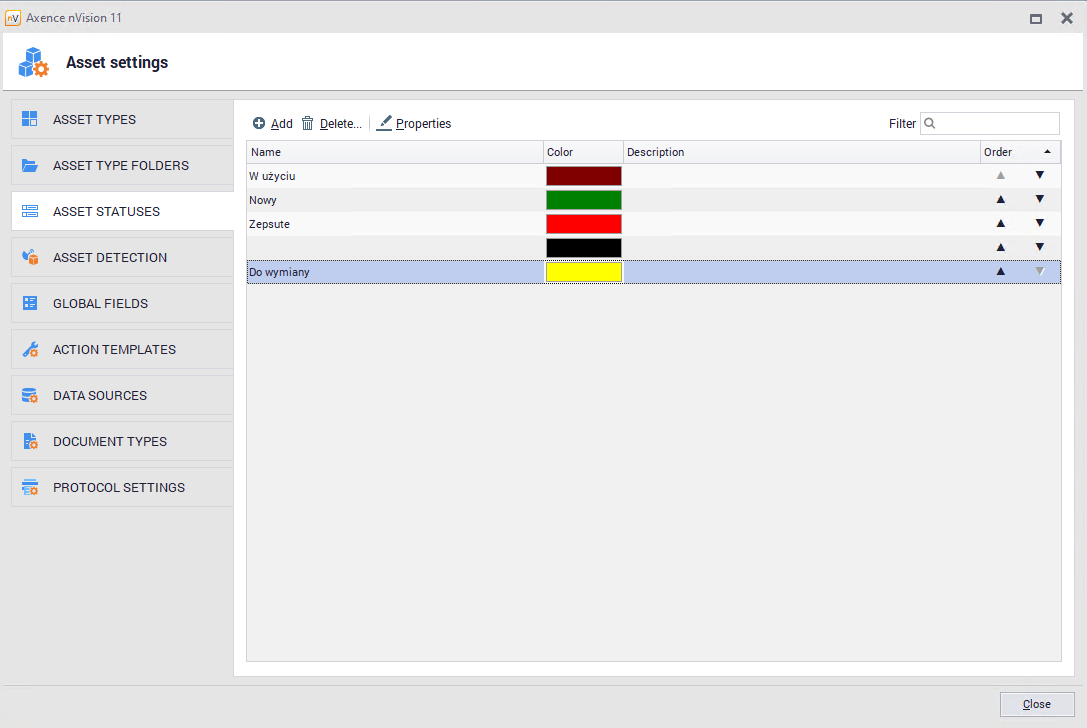
Asset statuses let you highlight and categorize assets. Each asset must always have exactly one status. The list of available statuses is in the Asset settings window, on the Asset statuses tab:
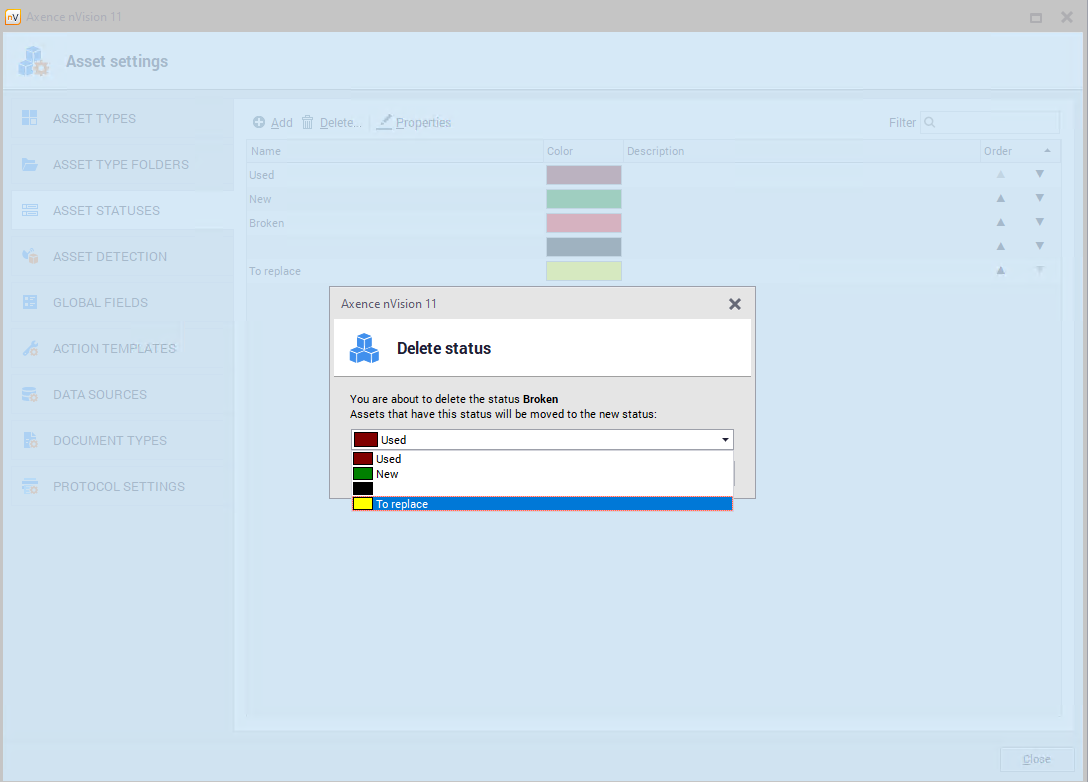
Statuses are shown in the lists of assets, so you can filter and sort assets by status (in the order of statuses in the list). Adding a new status To add a new status, open the Asset settings window and select Asset statuses. Click on [ Add ] – the window for adding a new status opens. The "Name" and "Color" fields are required. You can also add additional information and specify whether the status is the default for new assets. Deleting statuses To delete a status, open the Asset settings window and select Asset statuses. Select the status in the list and click on [ Delete ]. Select a new status for the assets that currently use the deleted status:
Built-in statuses At first, the program has several built-in statuses: •New (default for new assets) •In use •In stock, working •In stock, damaged •In delivery •In repair •To be withdrawn •Sold •Disposed of •Lost You can edit and delete built-in statuses. |