MSI packages and software sets


|
MSI packages and software sets |
|
|
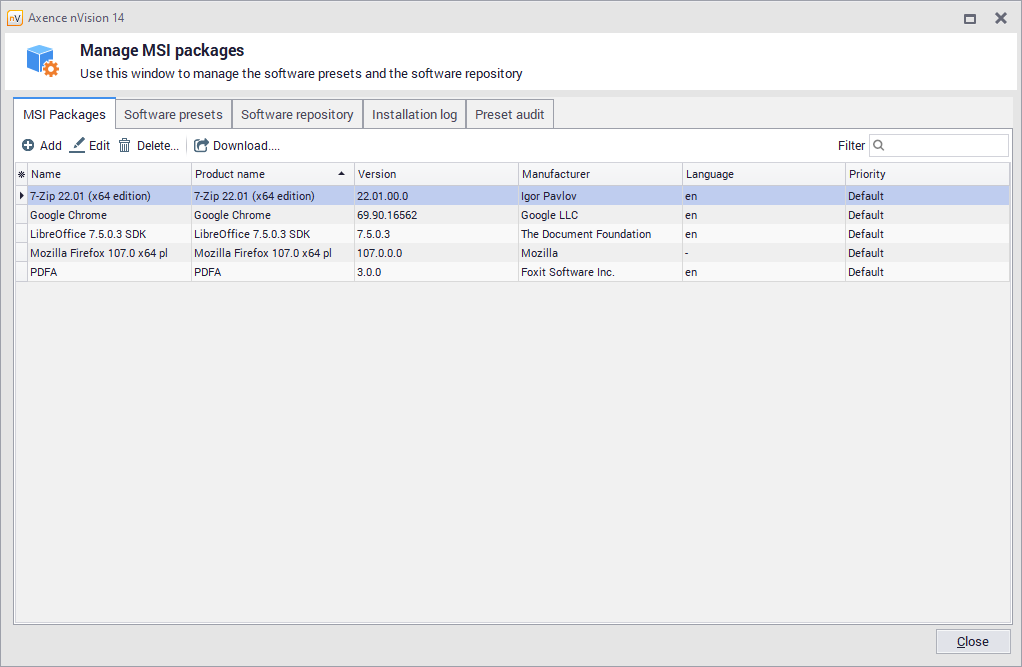
The nVision Agent also lets you manage program installations on monitored computers: •Installing programs required in the company •Uninstalling unauthorized programs Software installations are managed on the basis of a repository of MSI packages (files). An MSI package is an object created from an installation file with the MSI extension compatible with Windows Installer (https://en.wikipedia.org/wiki/Windows_Installer). Installation packages are unique when the MSI file properties differ in the product code (productCode), product version (productVersion) or product language (productLanguage). The Agent can also install updates, but it does not allow application downgrades. How the Agent works 1.The Agent installs packages only after it downloads all packages configured for it, because it takes into account the priorities set in the package properties. 2.The Agent installs an application only if it is not installed at all or is installed in an older version than the one the Agent received (update). 3.The Agent periodically checks whether all applications from its packages are installed – if any are missing, it installs them again. This happens regardless of whether software information scanning is selected in the Agent profile. 4.The list of applications (packages) to uninstall is generated on the basis of information collected by Agents by monitoring the registry entries of installed applications and the information about installations from MSI packages. The Agent periodically checks whether an application marked for removal has been installed – if it is detected, the Agent uninstalls it again. Managing MSI packages and software sets To manage MSI packages and software sets in the MSI package manager: 1.Select MSI package manager in the main program menu. 2.In the Manage MSI packages window, click on [ Add ]:
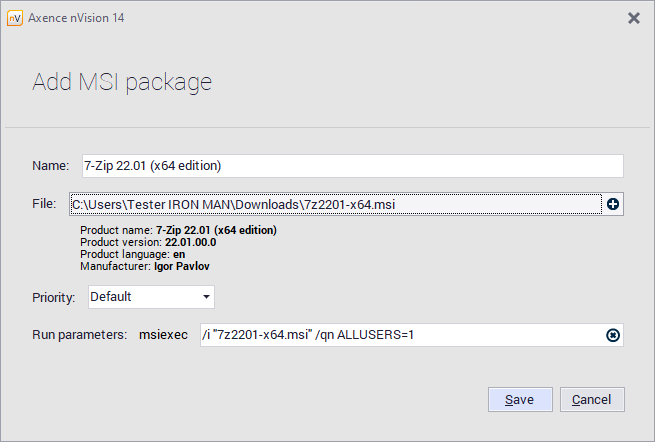
3.In the dialog window, select the MSI installer file. 4.In the package window, set the installation priority (taken into account when several packages are installed in one group) and additional start parameters (copied from the website of the MSI installer vendor). Click on [ Save ]:
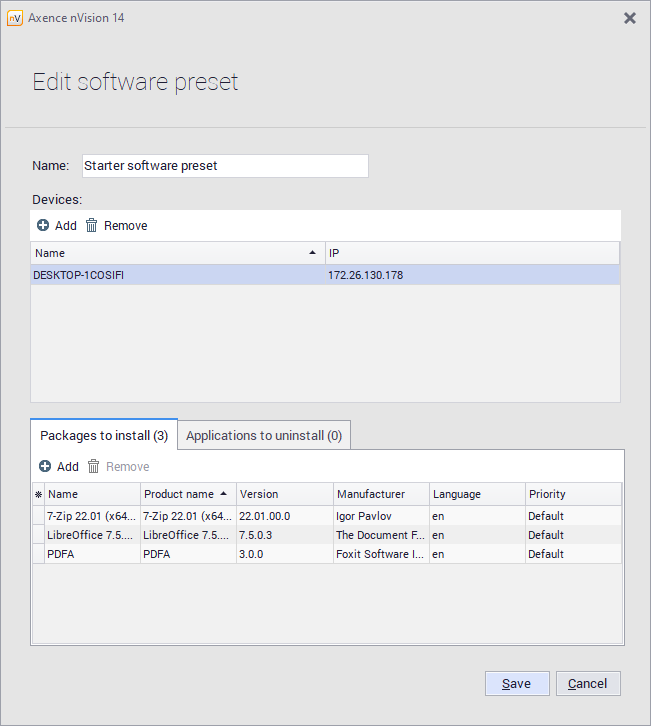
Important! If you delete the start parameters or enter incorrect ones, the MSI package may not be installed correctly on the workstation. 5.Go to the Software sets tab and click on [ Add ]. Create a new group by specifying: •The group name •The devices on which the applications are to be installed or uninstalled •The packages to install (created in step 4) or the applications to uninstall (on the basis of information collected by Agents by monitoring the registry entries of installed applications)
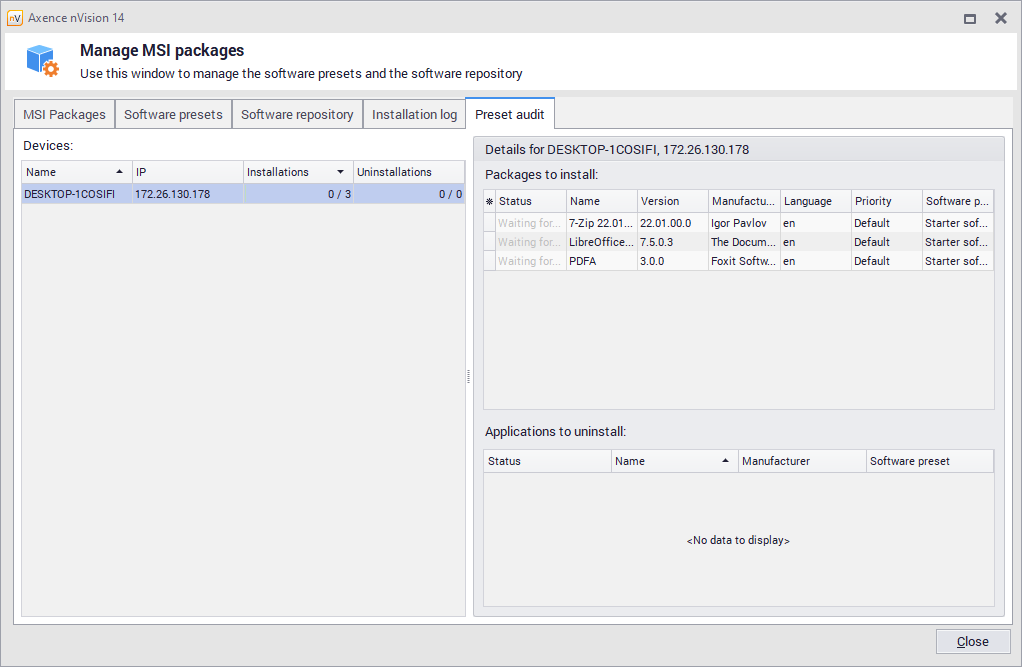
6.Click on [ Save ]. The status of tasks on the devices is shown on the next tab of the Manage MSI packages window, Software sets. 7.You can edit both packages and software sets: double-click on them, or select them and click on [ Edit ]. You can also change the priority and download the MSI package. 8.On the Set audit tab, you can check the installation progress.
|